Apex Science Publication
01Prepare files
02Create or access account
03Upload and describe
04Submit and track
Before you begin: prepare the manuscript, cover letter, figures/tables, supplementary files, title-page information, reporting checklists, and all required ethics, funding, conflict-of-interest, data, registration, and AI-disclosure information.
1

Choose the correct journal entrance

Open the journal website and select Submit a Manuscript, or use the direct portal below.

Keep the context consistent. A manuscript submitted to iCancer must remain in the iCancer portal; a TRM manuscript must remain in the TRM portal.
2

Create an account or log in

Select Create an Account for a new account. Complete your name, affiliation, country, email, password, and privacy agreement. Existing users can select Log in.

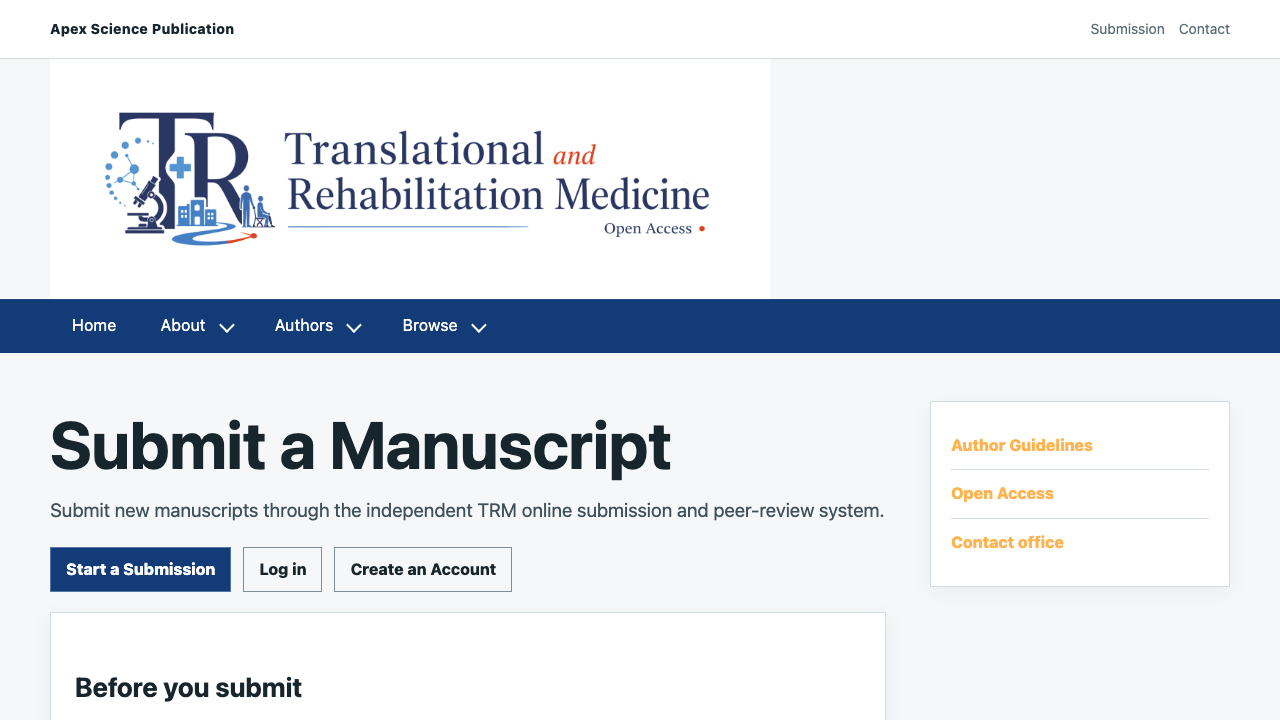
TRM submission information page with Start a Submission, Log in, and Create an Account buttons
Submission information page: choose the action that matches your account status.
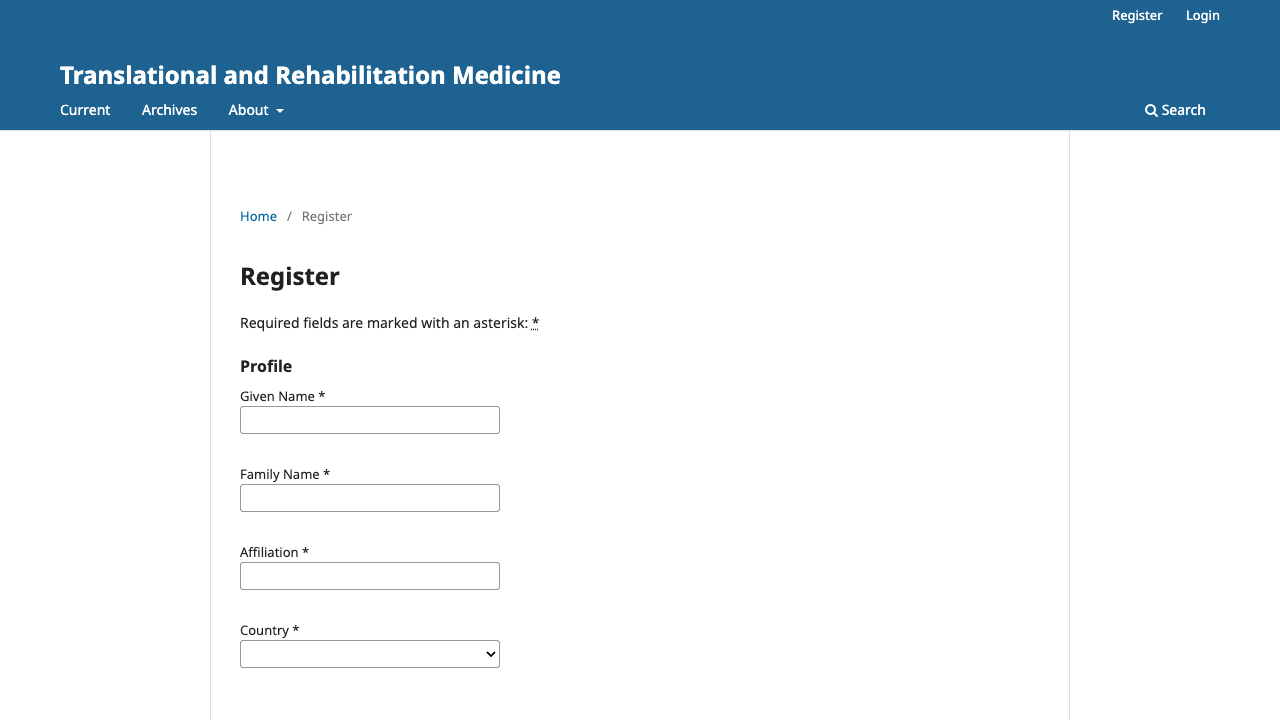
TRM registration form showing profile, login, and privacy fields
Registration form: required fields are marked with an asterisk.
3

Start a submission

Choose the relevant section or article type, confirm the submission checklist, and acknowledge the journal's policies. Select Begin Submission to open the submission wizard.

  • Use the article type that best matches the manuscript.
  • Confirm that the work is not under consideration elsewhere.
  • Keep the corresponding author email current.
4

Upload the manuscript files

Upload each file using the matching file type. A typical submission includes:

  • Main manuscript file
  • Cover letter
  • Figures, tables, or supplementary materials when required
  • Title-page information and reporting checklists when requested

Check the file labels before continuing. The main manuscript should be identified as the manuscript file, not as a cover letter or supplement.

5

Enter metadata and add contributors

Enter the title, abstract, keywords, funding, conflicts, and other required metadata. Add every author in the correct order and identify the corresponding author.

  • Use each contributor's full name and current affiliation.
  • Check spelling, email addresses, and author order carefully.
  • Contributor entries are treated as Authors by default; a Translator role is not shown.
6

Complete declarations

Review the declarations page and provide accurate responses for conflicts of interest, funding, ethics approval, informed consent, data availability, clinical or study registration, and AI use where applicable. Correct any validation message before proceeding.

7

Review and submit

Use the final review page to check the files, metadata, contributors, and declarations. When everything is correct, select Submit. Save the manuscript ID shown after successful submission.

Do not send a new manuscript by email unless the editorial office specifically asks you to do so.

8

Track the public manuscript status

After logging in, open My Manuscript Status to see the author-facing status and recent update. Use the manuscript ID in correspondence with the editorial office.

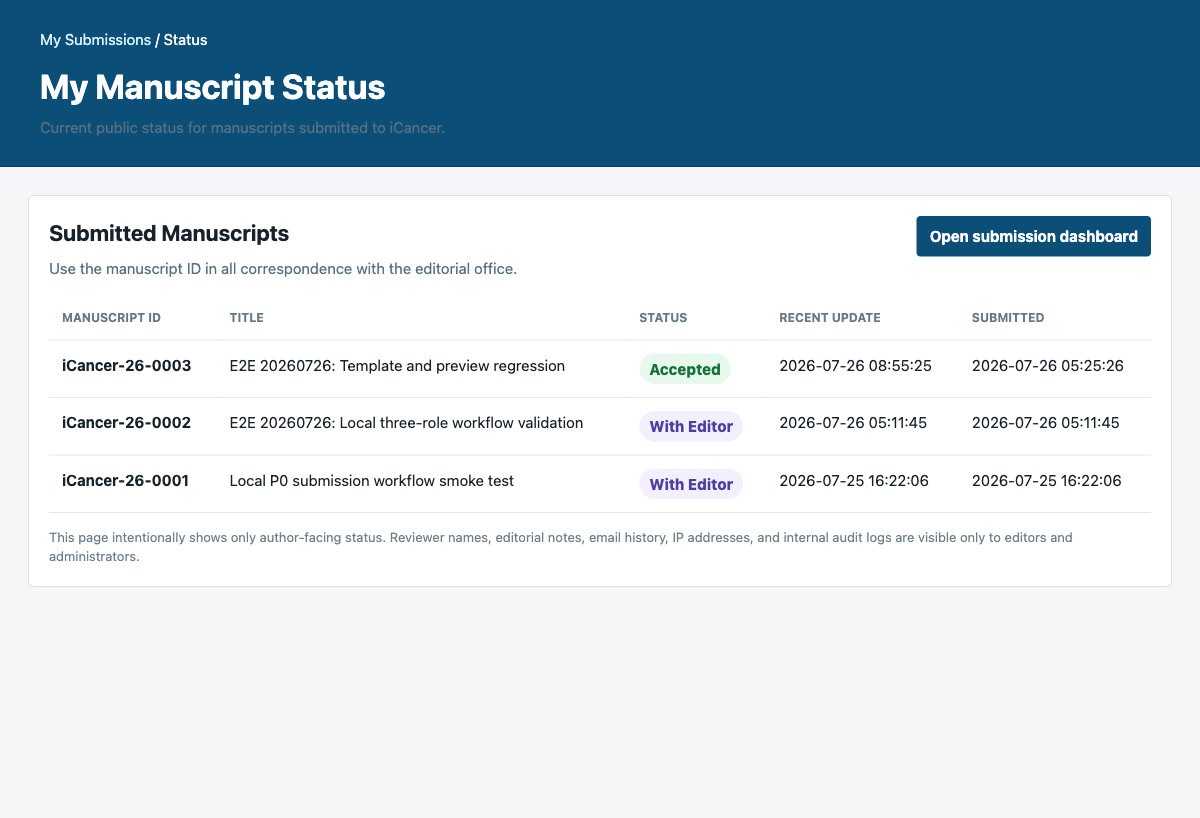
Author manuscript status page showing manuscript IDs, titles, and public status labels
Author-facing status view: it shows the manuscript ID, title, public status, and recent update.

Privacy boundary: reviewer names, internal editorial notes, email history, IP addresses, and audit details are not shown to authors.

Author checklist

Before selecting Submit

Files

  • Manuscript and cover letter uploaded
  • Figures, tables, and supplements labeled correctly
  • Reporting checklist attached when applicable

Metadata

  • Title, abstract, keywords, and article type checked
  • All contributors added in the correct order
  • Declarations completed and consistent with the manuscript